Welcome to FlashLogs!
Welcome to FlashLogs!
These instructions assume the following:
If these conditions are met, you can skip to Installing and Updating below.
FlashLogs requires the following Python modues, which the installer will attempt to locate:
If they are not found, the installer will automatically attempt to install or update them from the Internet.
If you do not have these modules in the required versions and you do not have an Internet connection, you will need to find another way to get them before using FlashLogs. The easiest way to do this is to temporarily connect your machine to the Internet and then run the following command using your favorite shell (i.e., CMD, PowerShell, BASH, etc.):
pip install numpy matplotlib pandas -UIf this is not an option, you will need to get these modules (and Python itself if necessary) from another machine and transfer them to the target machine using, e.g., a thumb drive or a local network. Such a procedure is beyond the scope of this README, but feel free to contact me if needed.
For Machines with a Connection to the Q Drive:
1. Open Windows Explorer.
2. Navigate to “Q:\Proton HypersScan Commissioning\Vault1_Commissioning\FLASH Records\FlashLogs_Windows”.
3. Double-click “install.py”.
For Machines without a Connection to the Q Drive but with an Internet Connection:
1. Open a Web browser of your choice.
2. Navigate to https://trocksscience.com/mjd.
3. Scroll down to the bottom; under “FlashLogs:,” click on the FlashLogs_Windows link.
4. Download “FlashLogs_Windows.zip” to a directory of your choosing on your machine (for example, “C:\Users\myuser\Downloads\”, which is probably the default). Let’s call this directory “DESTINATION_FOLDER”.
5. In Explorer, navigate to “DESTINATION_FOLDER”.
6. Double-click “FlashLogs_Windows.zip”.
7. Double-click the folder “FlashLogs_Windows”.
8. Explorer’s menu should automatically switch to “Extract > Compressed Folder Tools”. Click the “Extract All” menu button.
9. Under “Files will be extracted to this folder,” remove “FlashLogs_Windows”.
10. Click the “Extract” button.
11. If updating (rather than freshly installing), click the option for “Replace the files in the destination.”
12. Double-click the “FlashLogs_Windows” folder.
13. Double-click “install.py”.
For Machines without a Connection to the Q Drive or an Internet Connection:
NOTE: In this case, you will probably only be able to update, as initial installation requires a collection of Python packages from the Internet.
1. Use a machine with either a connection to the Q Drive or an Internet connection to get FlashLogs_Windows.zip according to either of the above sets of instructions.
2. Use a thumb drive (or any other method) to copy FlashLogs_Windows.zip to a directory of your choosing on the target machine (for example, “C:\Users\myuser\Downloads\”, which is probably the default). Let’s call this directory “DESTINATION_FOLDER”.
3. Go to Step #5 above.
A self-updating script is currently in development; for now, please update FlashLogs by simply repeating the installation instructions above.
WinKey+S or WinKey+R<Enter> or <Return>).dir and cd should be enough for this...” means “the directory above this one” (e.g., “cd ..” means “go up one folder”).python to start the Python interpreter.Note: You can quit Python at any time using the command “quit()”. If you’ve started Python in the wrong directory, the easiest thing to do is probably to just “quit()” Python, “cd” into the correct folder, then run “python” again.
Run the following at the Python prompt, replacing <FILENAME> with the name of your logfile.
Don’t miss the single-quotes around the filename (e.g., FILE = 'MevionFLASH_02272024_150855 study A').
# setup:
from flashlogs import *
# specify a file, either manually:
FILE = '<FILENAME>'
# or choose from a list:
# list_logfiles()
# FILE = get_logfile_name(<FILE_NUMBER>)
# analyze:
la = LogAnalyzer(FILE)
la.profile()
la.save_profile()
# scroll through delivery records:
la.show_next_record()
la.show_next_record()
la.show_next_record()
la.show_next_record()
# etc.from flashlogs import *This loads the flashlogs package.
Note: The first time you import flashlogs after installing or updating on Windows, you may see some warnings about escape sequences. These can be safely ignored.
You can specify a log file manually by either typing or pasting it in place of <FILENAME>:
FILE = '<FILENAME>'Alternately, you can print a numbered list of files in the current directory whose names match the log-file pattern using the function list_logfiles(). You can then retrieve the name of a file from the list using the function get_logfile_name(<FILE_NUMBER>). For example, suppose our directory contains log files named 'MevionFLASH_02272024_150855 study A', 'MevionFLASH_02272024_162314 study B', and 'MevionFLASH_02272024_171911 study C'.
We could then do the following:
# print the list:
list_logfiles()
    [(0, 'MevionFLASH_02272024_150855 study A'),
     (1, 'MevionFLASH_02272024_162314 study B'),
     (2, 'MevionFLASH_02272024_171911 study C')]
# get the filename for study B:
FILE = get_logfile_name(1)la = LogAnalyzer(FILE)Calling the LogAnalyzer constructor loads the log file and runs the analysis.
It also prints some basic information about what it found in the log file; you can see this information again at any time by calling la.info().
You should (hopefully) only need a few commands for basic analysis while running.
These are LogAnalyzer.show_record(), LogAnalyzer.profile(), and LogAnalyzer.save_profile().
For conveniently scrolling through the entries, there is also a pair of functions LogAnalyzer.show_next_record() and LogAnalyzer.show_prev_record().
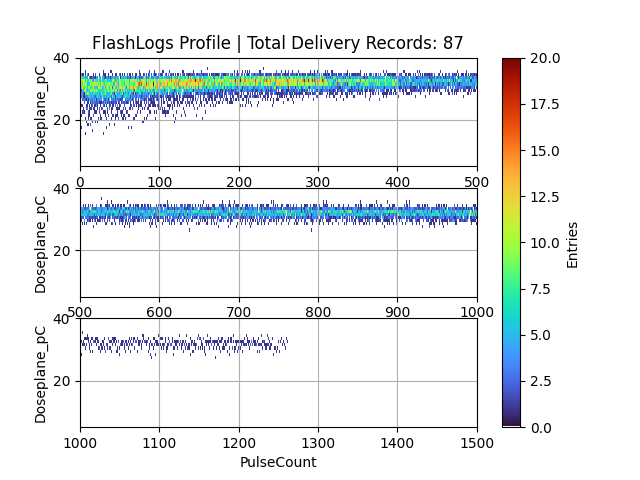
la.profile()This function shows the distribution of all the delivery records in the log file, for PulseCount indices 0–1500.
la.save_profile()This function simply saves the profile plot as a .png file, using the name of the original log file as a base.
la.show_record(<RECORD_NUMBER>)     # show a specific delivery record
# and
la.show_next_record()               # scroll through records in order
la.show_prev_record()               # scroll through records in order
This is probably the (currently) most-usefule feature; it prints relevant parameters for a given delivery record and displays a plot of Doseplane_pC vs Timestamp_us.
These will probably be your best friends.
For a typical workflow, call la.show_next_record(), then just keep pressing <up> and <Enter>.
Note: As of v0.9.0, FlashLogs will automatically check for and import any new data from the logfile if you call show_next_record() while on the final record.
You can print summary information at any time using the .info() method, which is shared by the main object flashlogs.LogAnalyzer, its child flashlogs.DeliveryRecord, and the delivery record’s child pandas.DataFrame (which contains that record’s data table of pulse measurements).
These can be accessed as follows (replace “0” with your choice of file and delivery record):
from flashlogs import *                 # import module(s)
la = LogAnalyzer(get_logfile_name(0))   # create LogAnalyzer object and run analysis
la.info()                               # print summary for LogAnalyzer
dr = la.get_delivery_record(0)          # retrieve DeliveryRecord object
dr.info()                               # print summary for the chosen delivery record
df = dr.pulses                          # retrieve pulse data table, which is a PANDAS DataFrame object
df.info() # print summary for pulse data tableDuring a FLASH session on the accelerator, the Mevion software regularly appends to the log file. As of v0.9.0, FlashLogs is now able to check wether its log file has grown and import the new data if needed. You can run an update at any time by simply calling the .update() method of the LogAnalyzer object.
Note: For convenience, FlashLogs will also automatically check for and import any new data from the logfile if you call .show_next_record() while on the final record.
For example:
from flashlogs import *                 # import module(s)
la = LogAnalyzer(get_logfile_name(0))   # create LogAnalyzer object and run analysis
la.info()                               # print summary for LogAnalyzer
FLASH-Log Analyzer | Summary
============================
logfile:                       append_test.log
logfile_Timestamp:             None
Analysis_Timestamp:             2024-11-08 15:26:31.505061-06:00
Total_Delivery_Records:         3
Current_Record:                 DR_0

# Now suppose two more deliveries are run on the machine. Then:

la.update()                             # import the new data
la.info()                               # summary should now reflect the new number of total records
FLASH-Log Analyzer | Summary
============================
logfile:                       append_test.log
logfile_Timestamp:             None
Analysis_Timestamp:             2024-11-08 15:26:31.505061-06:00
Total_Delivery_Records:         5
Current_Record: DR_0You can get details about any module, object, function, etc. (within FlashLogs or otherwise) using Python’s built-in help command.
Note that when requesting help for functions, there is a difference between help(some_function) and help(some_function()): The former shows help for the function itself, and the latter shows help for whatever the function returns, which could be any Python object or datatype (including None, if the function simply performs an action without returning a result).
Friendly reminder: The term “method” simply refers to a function that is part of a class.
For example:
# initialize
from flashlogs import *
la = LogAnalyzer( get_logfile_name(0) )
# view help
help(flashlogs)                         # module
help(ls)                                # function
help(ls())                              # function's result (in this case, a list)
help(la)                                # class
help(la.current_record)                 # class property
help(la.profile)                        # class method
help(la.profile())                      # class method's result (in this case, a matplotlib.pyplot.Figure object)
Finally, if at any point there is a problem that you cannot resolve, please contact me.
Good luck!
~ Dr. Mark J. Duvall, PhD
~ duvall at wustl dot edu
~ Last updated 2024/11/08